
How to make Instagram Reels: step-by-step guide
Try ShortClip for free.
Upload a video and ShortClip finds the key scenes, makes them vertical, and adds captions and a title.
Make short videos for free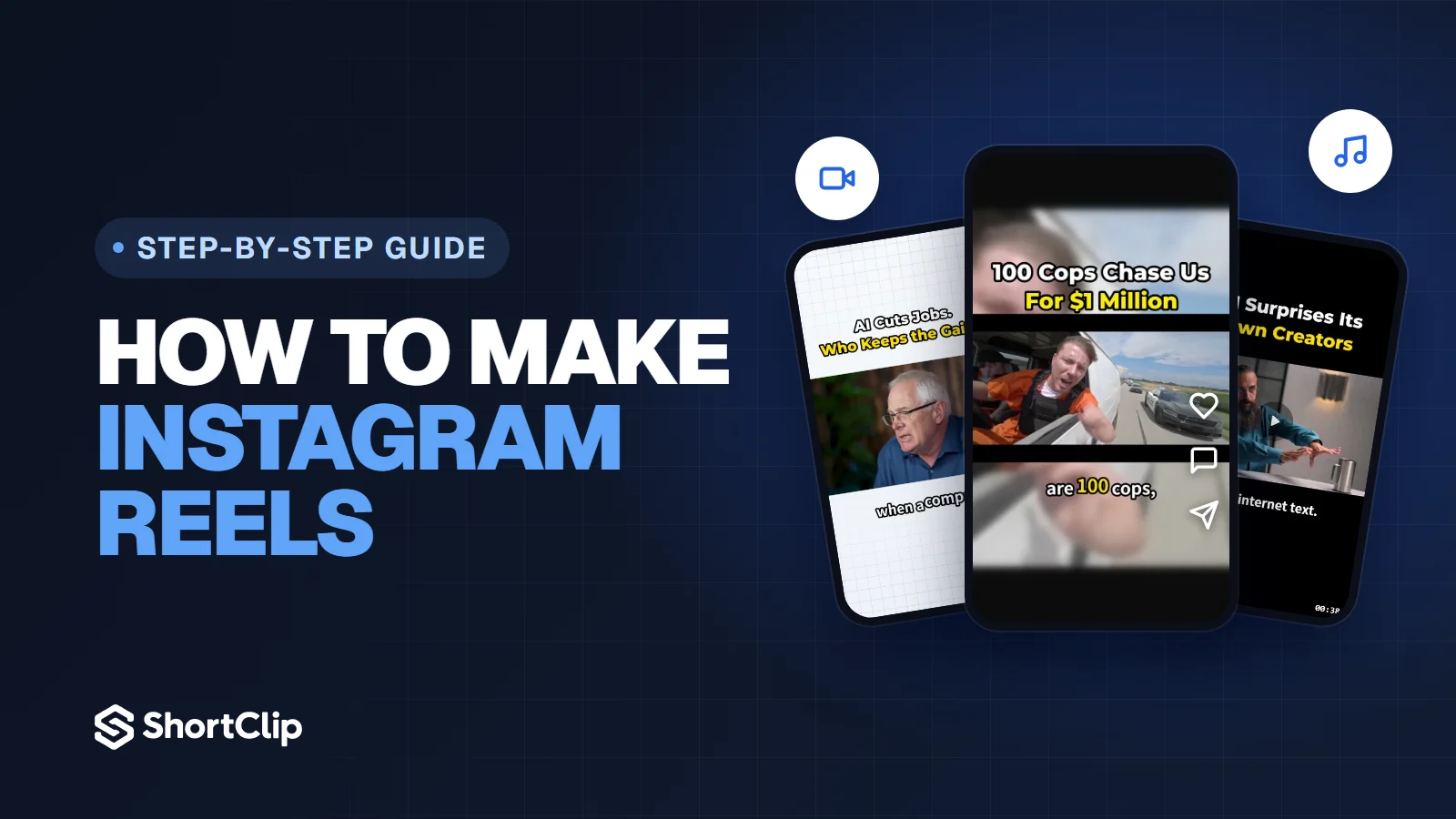
Make a Reel in the Instagram app, learn the length rules and editing tools, avoid music pitfalls, and turn videos you already have into Reels.
Decide these before you start
| Item | Decide | Guideline |
|---|---|---|
| Length | How long the Reel will be | Under 3 minutes to reach non-followers. Use the shortest length that still makes your one point |
| Footage | Record now or use video you already have | If it comes from a long video, cut the part you need first |
| Audio | What the audio will be | Music from Instagram's library, your own voice (original audio), or none. Business accounts should check which songs they can use |
Instagram says Reels can be recorded and edited up to 20 minutes long, and that Reels over 3 minutes are not recommended to new audiences. The Instagram for Creators blog also explains that Reels up to 3 minutes can be shown to non-followers in the Reels tab and on Explore.
How to make a Reel in the Instagram app
Tap + and choose Reel
Tap the create button (+) and select Reel. In a desktop browser, choose Create > Post and select a video to post it as a Reel.
Record or choose a video
Record on the spot or pick videos and photos from your camera roll. You can combine several clips.
Edit your clips
Trim the start and end of each clip to cut what you do not need. Reorder clips or add more here.
Add audio, text, and effects
Add a song from the music library, your own voiceover, text, stickers, and effects.
Set the cover and caption, then share
Choose a cover image, add a caption, location, tags, and alt text, and tap Share.
Drafts are saved on the device you use and do not sync to other devices. Button names and positions can differ by device and app version.
Instagram Reels editing features
| Tool | What it does | When to use it |
|---|---|---|
| Audio | Use songs from Instagram's music library, sound you record or upload, or other people's original audio | Set the mood or join a trending sound |
| Voiceover | Record narration over your clips | Explain footage you already filmed |
| Text | Put text on screen | Opening title, key points, captions |
| Timer and speed | Record hands-free, or speed up or slow down video and audio | Filming alone, slow motion or time-lapse |
| Templates | Reuse another Reel's music and timing with your own clips | Quick Reels from photos or short clips |
| Remix | Record alongside someone else's Reel | Reactions and collaborations |
For the rights behind music, see Music copyright for short videos.
Turn a long video into Instagram Reels
When the Reel comes from a long video, such as a YouTube video, a webinar, or an interview, do these three things before opening Instagram. In the Reels editor you then only add audio and text.
| Task | What to do | How |
|---|---|---|
| Cut the part you need | Pick a section that covers one complete point, under 3 minutes (shorter tends to perform better) | A video editor, or ShortClip (below) |
| Make it vertical | Convert a 16:9 video to 9:16, either by cropping or by adding bars above and below | A video editor, or a ShortClip template |
| Add captions | Make it understandable with the sound off | Auto captions in a video editor, or ShortClip |
Tips for Reels people actually watch
- The first line and first shot make it clear what the Reel is about
- Each Reel makes one point
- Captions and on-screen text stay clear of the caption area at the bottom and the buttons on the right
- It makes sense with the sound off
- The cover image shows what it is about (it stands out on your profile grid)
- The first line of the caption states the key point
- Your profile gives viewers somewhere to go next, such as your website or the full video
The Instagram for Creators blog names posting original content on a consistent schedule as one effective way to grow. Trial Reels, which are shown to non-followers first, let you test a new format without worrying about how your followers will react.
Make Reels from long videos with ShortClip
Upload a long video or paste a public YouTube link into ShortClip, and the AI transcribes the speech, picks the highlights, and makes several vertical 9:16 videos with a two-line title and captions. It handles up to 180 minutes at a time and works in any spoken language; captions and titles come out in the spoken language (translation into another language is available on every plan).
You can edit the title, the caption text, timing, and style, and the start and end points in the editor, on a phone too. Then select the downloaded MP4 under Reel in Instagram, add audio and a caption, and post. ShortClip does not add background music or post to Instagram for you. The free plan includes 60 minutes a month.
How long can an Instagram Reel be?
Can I make a Reel from a video I already filmed?
Can I post a Reel from a computer?
Can a business account use trending songs?
Can I finish a draft Reel on another phone?
See plans and pricing|Free plan: up to 60 minutes a month, no credit card required
Related guides
How to make TikTok videos: a beginner's guide
Three ways to make a TikTok: film in the app, upload an edited video, or cut clips from a long video. Plus captions, business sounds, and tips that get videos watched.
How to make short videos: a complete beginner's guide
Order matters more than gear. Plan, film, edit, caption, and post: five steps to publish your first short video today.
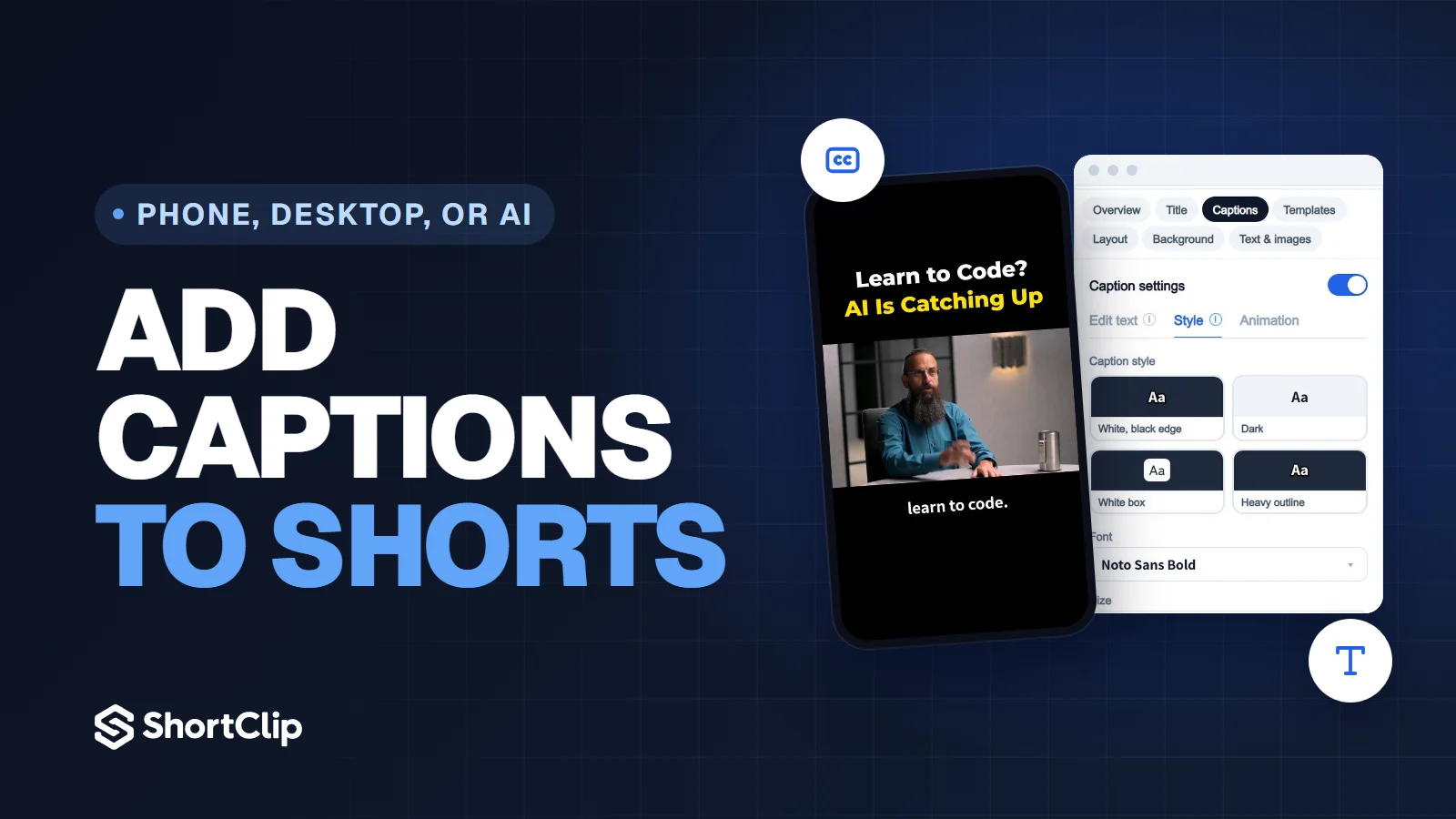
How to add captions to short videos: phone, computer, and AI
Three ways to caption short videos, and the styling rules that keep captions readable on a phone.