
How to make TikTok videos: a beginner's guide
Try ShortClip for free.
Upload a video and ShortClip finds the key scenes, makes them vertical, and adds captions and a title.
Make short videos for free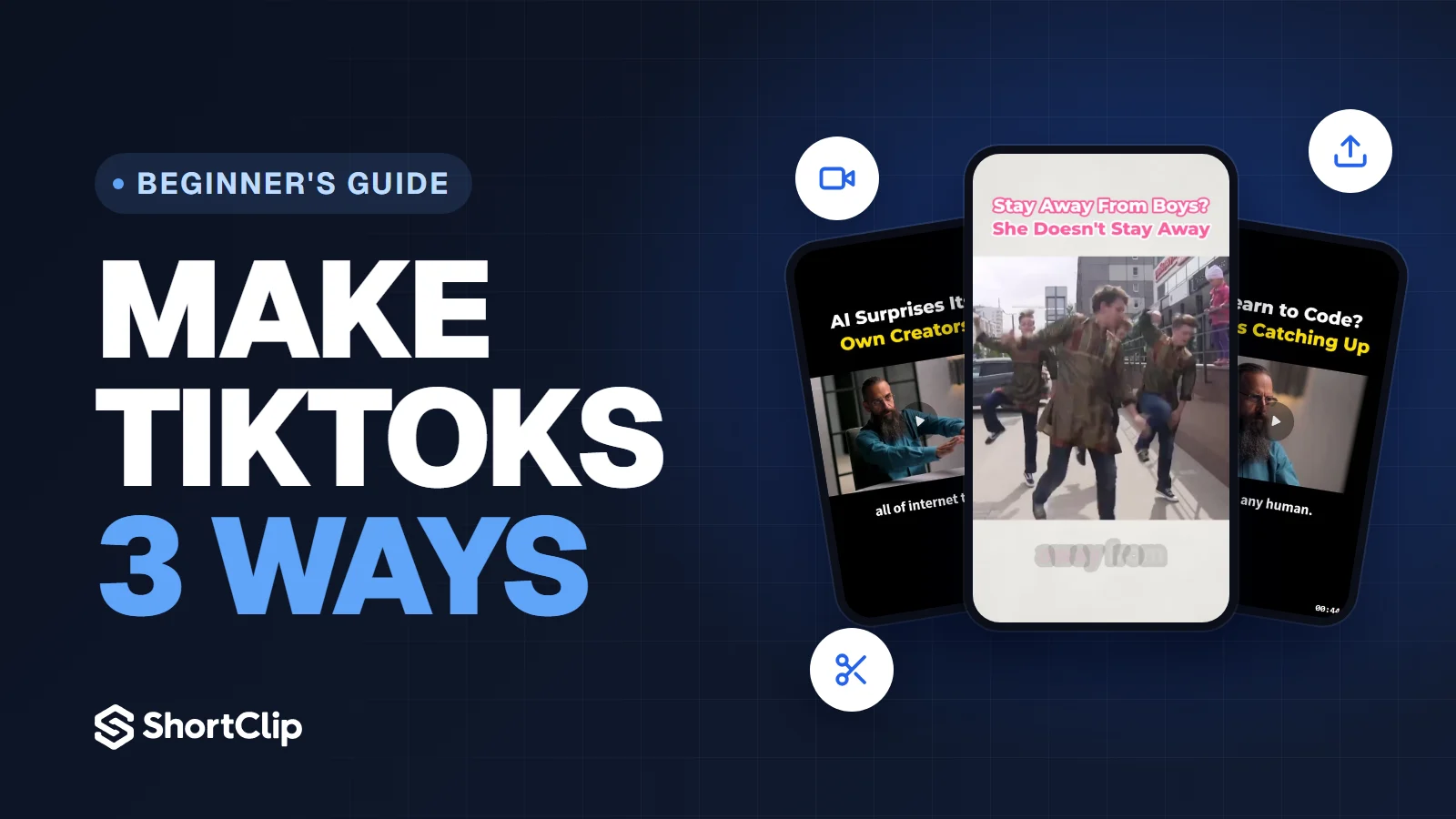
Three ways to make a TikTok: film in the app, upload an edited video, or cut clips from a long video. Plus captions, business sounds, and tips that get videos watched.
Three ways to make a TikTok video
| Method | Best for | Upside | Watch out for |
|---|---|---|---|
| Film and edit in the TikTok app | Beginners, anyone who wants to stay on their phone | Effects and sounds right where you film | Fine cuts and caption tweaks are harder |
| Edit in an app or on a computer, then upload | People who care about the look | Detailed on-screen text and structure | Add music inside TikTok to stay on the safe side of music rights |
| Cut clips from a long video | Anyone with YouTube videos, webinars, or podcasts | More videos without filming | Landscape video needs converting to vertical |
How to film and edit a TikTok in the app
Tap +
Open the camera from + in the middle of the bottom bar. You need an account to post.
Choose a length and record
Choose a length on the camera screen and press record. To use a video you already have, tap Upload. Check the lengths offered in the app.
Trim and add text
Cut what you do not need and add on-screen text for the key point or an opening title.
Add captions and a sound
Choose Captions in the editor to turn speech into text automatically, then fix any mistakes. Pick a sound from TikTok's library.
Write a description, add hashtags, and post
Add a description and hashtags that say what the video is about, check who can view it, and post.
Auto captions support a range of languages. Button names and positions can change between app versions.
Editing elsewhere and uploading to TikTok
If you edit in an app like CapCut or in desktop software, export with these settings so the video fills the screen and looks sharp on TikTok.
| Item | Target | Why |
|---|---|---|
| Aspect ratio | Vertical 9:16 with no black bars | TikTok for Business recommends full-screen 9:16 |
| Resolution | 720p or higher (1080 x 1920 is plenty) | The same materials list 720p or higher as a check |
| Audio | Voice, music, or both, with speech clearly audible | They also recommend checking the balance between music and voice |
| Text placement | Away from the bottom and the buttons on the right | Like, comment, and the description sit on top of those areas |
Turn a long video into TikTok clips
If you already have YouTube videos, webinars, or live stream archives, you can make TikTok videos without filming. The flow is: find the highlights, cut around one topic, make it vertical, and add captions.
- Keep one topic per video and cut where that topic is complete
- Drop the warm-up and greetings and start with the line that matters most
- Crop to make the speaker's face large, or add bars above and below to keep slides fully visible
- Add captions to the speech for people watching with the sound off
TikTok itself has announced Smart Split, which takes a video over one minute uploaded in TikTok Studio on desktop and uses AI to split it into shorter clips (TikTok Newsroom, October 2025).
Choosing sounds: personal vs. business accounts
On a business account, Add sound shows only sounds from TikTok's Commercial Music Library, which can be used in regular posts and in ads. Personal accounts can also switch the sound list to commercial sounds.
For music rights in detail, see Music copyright for short videos.
Tips for TikTok videos people watch
| Point | What to do |
|---|---|
| Opening | Say what the video is about with the first line and first shot. Do not start with a greeting |
| Length | Match the length to the message. For the same content, shorter videos are watched to the end more often |
| Delivery | Mix talking to camera, voiceover, short on-screen text, and captions |
| Quality | Film in good light, and show products clearly up close |
| Keep going | Reuse the format that worked on a new topic |
Make TikTok videos from long videos with ShortClip
Upload a long video or paste a public YouTube link into ShortClip, and the AI transcribes the speech, picks the highlights, and makes several vertical 9:16 videos with a two-line title and captions. It handles up to 180 minutes at a time and works in any spoken language; captions and titles come out in the spoken language (translation into another language is available on every plan).
In the editor you can change the title, the caption text, timing, and style, the start and end points, and the layout (frame ratio, zoom, and background color), on a phone too. Then choose the downloaded MP4 with Upload in TikTok, add a sound and description, and post. ShortClip does not add background music or post to TikTok for you. The free plan includes 60 minutes a month.
For the full flow, see How to turn a YouTube video into short videos automatically.
How long can a TikTok video be?
Can I make TikTok videos with just my phone?
Can TikTok add captions automatically?
Can a business account use trending songs?
Can I post a landscape YouTube video to TikTok as is?
See plans and pricing|Free plan: up to 60 minutes a month, no credit card required
Related guides
How to make Instagram Reels: step-by-step guide
Make a Reel in the Instagram app, learn the length rules and editing tools, avoid music pitfalls, and turn videos you already have into Reels.
How to make short videos: a complete beginner's guide
Order matters more than gear. Plan, film, edit, caption, and post: five steps to publish your first short video today.
How to clip YouTube videos with AI: best tools compared (2026)
The main AI YouTube clipping tools compared, a 5-step workflow, and three rules for clips that get watched.