
How to turn a YouTube video into short videos automatically
Try ShortClip for free.
Upload a video and ShortClip finds the key scenes, makes them vertical, and adds captions and a title.
Make short videos for free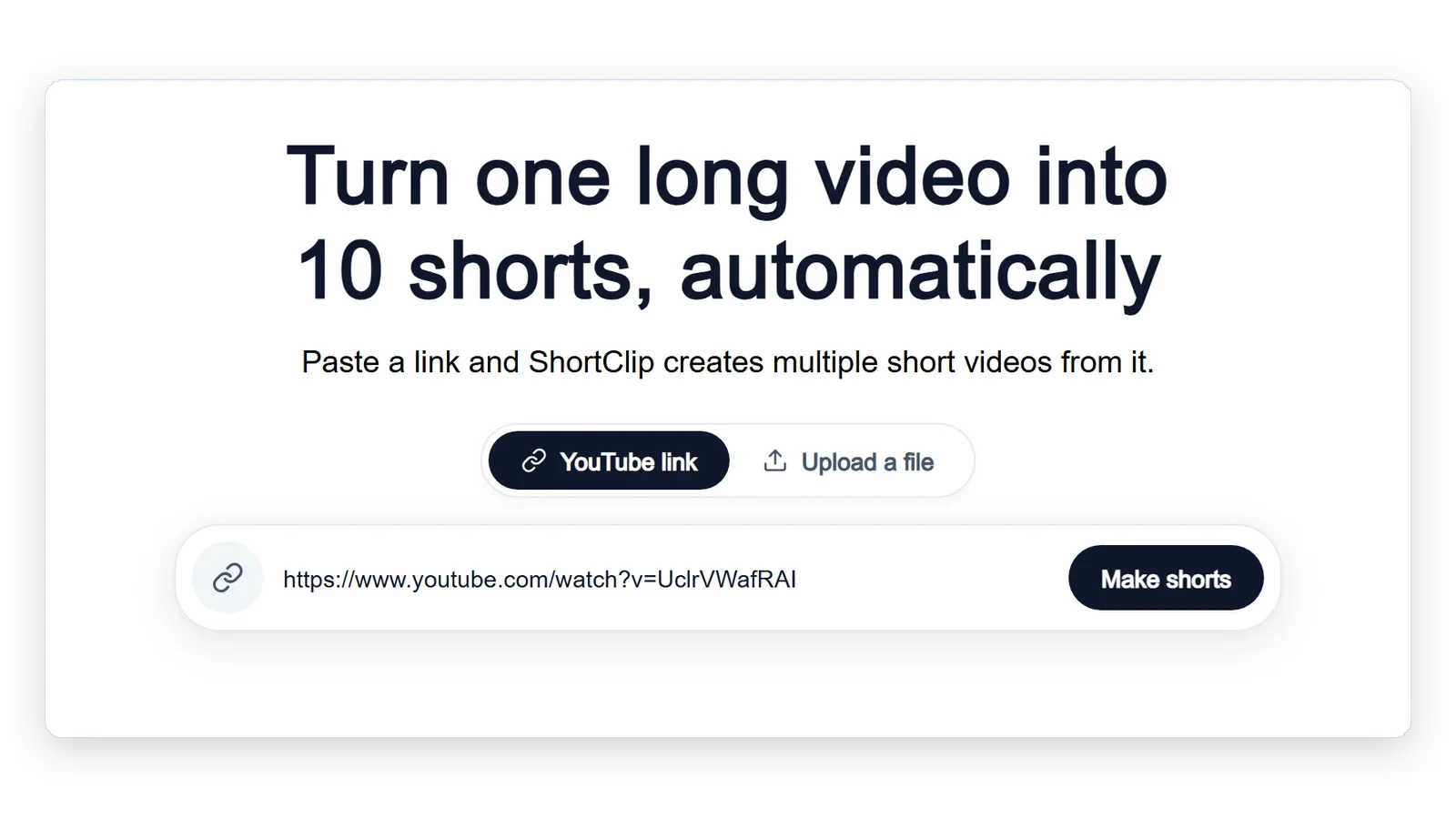
Paste a YouTube link and click "Make shorts". Also covers the range rules, what to do about errors, and copyright.
What you will learn
- Paste a YouTube link and click "Make shorts". There is no need to download the video first
- Select only the part you need under "Range" on the confirmation screen to save conversion minutes
- If the video belongs to someone else, always check the rights holder's permission and YouTube's terms
This guide shows how to make short videos in ShortClip from a long video you have published on YouTube. You do not need to download the video file again.
The steps at a glance
Step 1: Copy the YouTube video link
On a computer, copy the link from the browser's address bar. In the YouTube app on a phone, use Share on the video and copy the link. The input box shows an example in the form "https://www.youtube.com/watch?v=...".
Step 2: Paste the link and click "Make shorts"
Choose the "YouTube link" tab
It is above the input box on the home page and is selected by default.
Paste the link
Paste the link you copied into the box that says "Paste a YouTube link".
Click "Make shorts"
The button changes to "Loading...", and once the video title, thumbnail, and length are loaded, the confirmation screen opens.
Step 3: Choose a template and a range
Choose how the title and captions look with the template, and decide which part of the video to use under "Range". For long material such as a livestream archive, selecting only the part where the main topic is discussed makes it easier to get the shorts you want.
| Length of the source video | Range |
|---|---|
| Up to 3 hours | You can convert the whole video, or narrow the range if you like |
| Over 3 hours, up to 6 hours | Choose a range of 3 hours or less to convert |
| Over 6 hours | Cannot be converted |
Step 4: Click "Make shorts" and wait
Click "Make shorts → (⏱️ minutes)" to start. The number is how many minutes this conversion uses. For a YouTube video, ShortClip first fetches the video, then transcribes it, finds the highlights, and writes titles. You can follow the progress in the in-progress projects on the home page, and processing continues if you close the page.
Step 5: Review the generated shorts
When processing is done, the "Generated shorts" list opens with one card per short. You get about one short for every 2 minutes of source video (or range), up to 10. Click a card to play it, or its Edit button to open the editor.
Pick the shorts you like, fix their captions and titles, and download them. For editing, see How to edit AI captions and How to edit AI-cut clips.
Things to keep in mind with YouTube videos
- Use videos from your own channel, or videos whose rights holder has given you permission
- Clipping someone else's video means following the rights holder's guidelines and YouTube's terms
- If a video cannot be fetched, upload the original video file from the "Upload a file" tab instead
- ShortClip follows the context of a conversation when it picks clips. The more a video is built around people talking, such as interviews and conversations, the more reliable the results
Frequently asked questions
Do I need to download the YouTube video and upload it?
Can I use a long livestream archive?
How are conversion minutes counted?
Can I use it for free?
Can I use videos in any language?
What to read next
Once your shorts are ready, polish the captions with How to edit AI captions. For the whole workflow, see How to use ShortClip: the complete guide.
See plans and pricing|Free plan: up to 60 minutes a month, no credit card required
Related guides
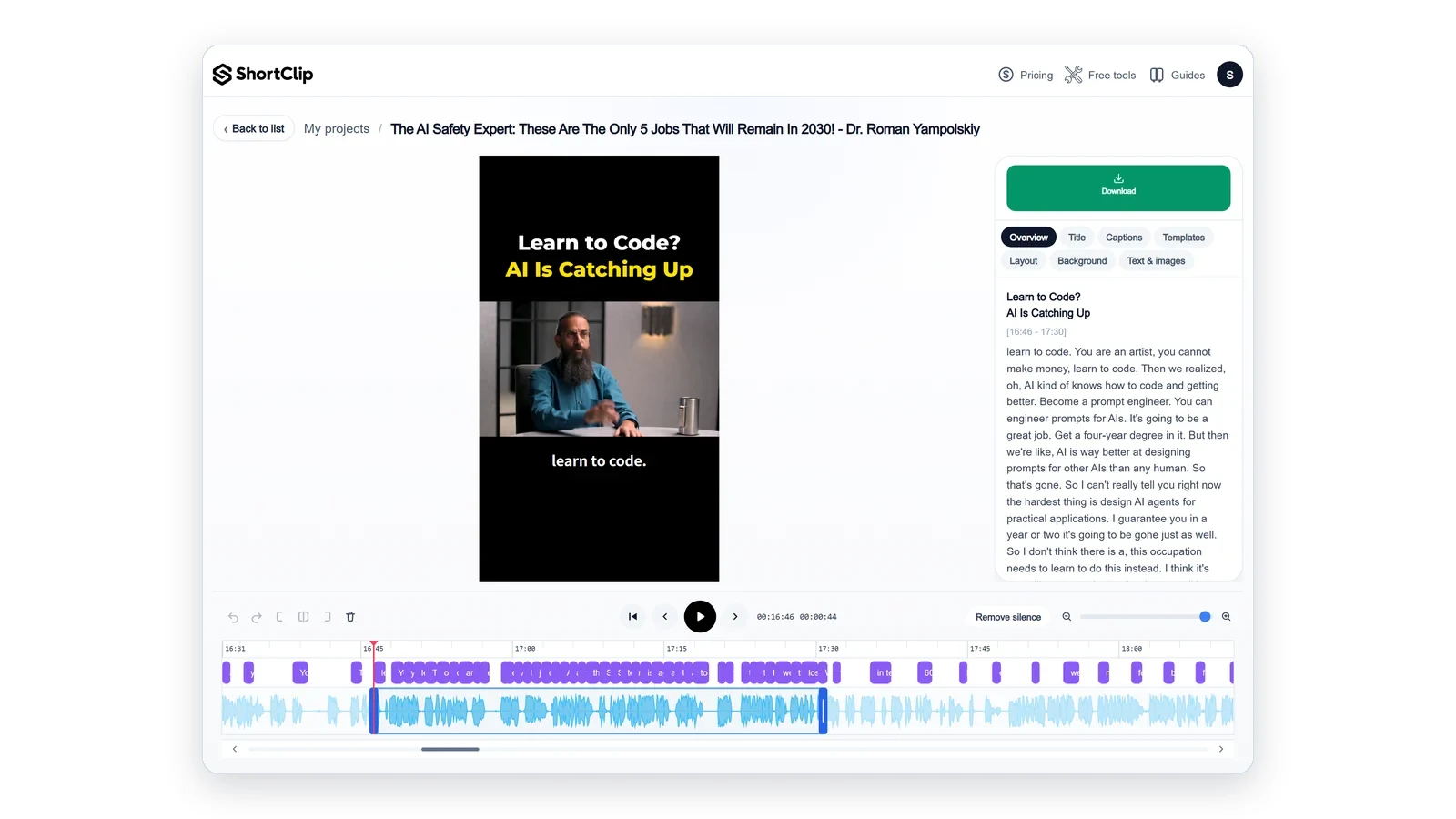
How to use ShortClip: the complete guide to making short videos with AI
From adding a video to editing and downloading the shorts the AI makes. The basics of ShortClip, in order.
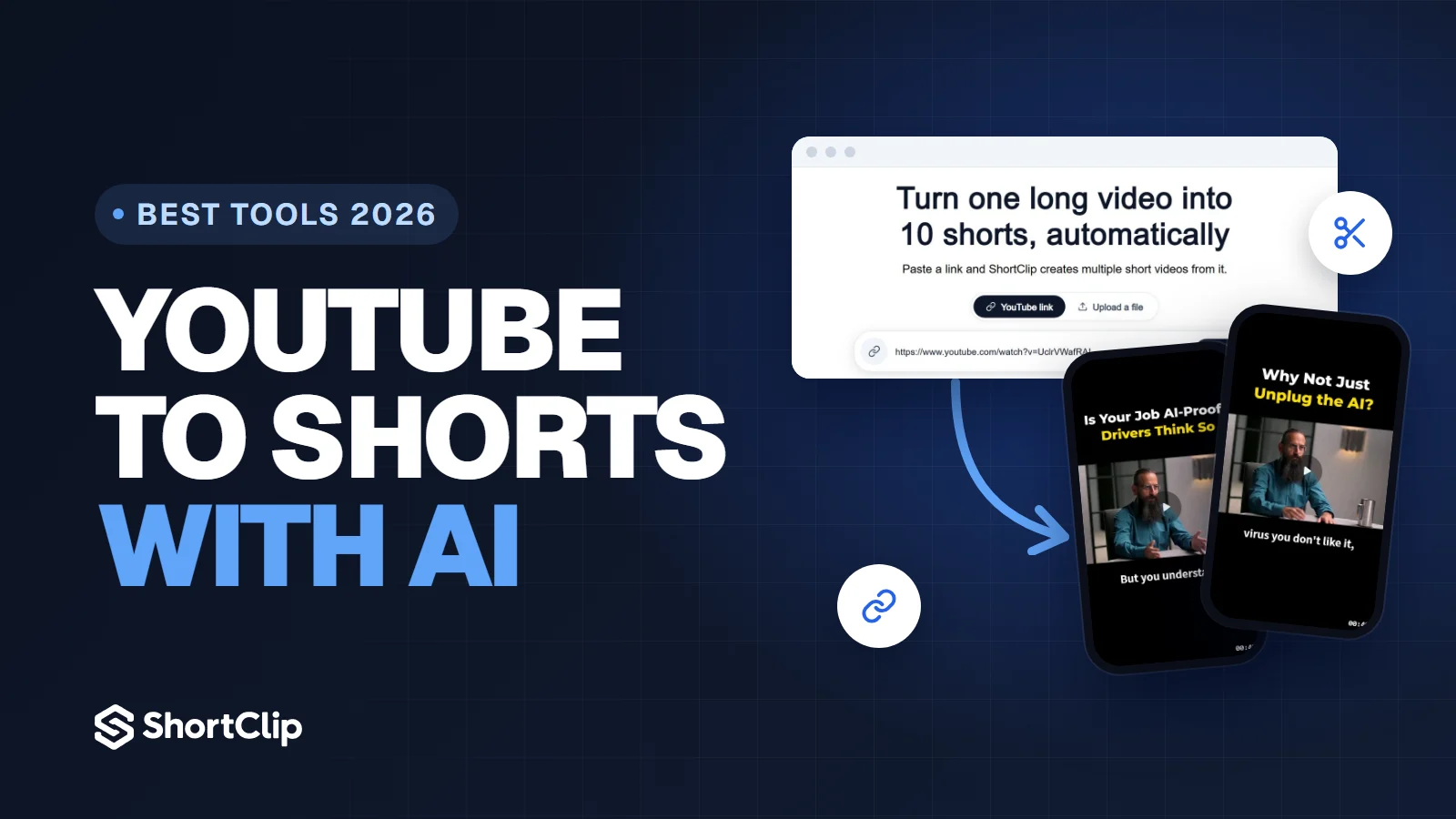
How to clip YouTube videos with AI: best tools compared (2026)
The main AI YouTube clipping tools compared, a 5-step workflow, and three rules for clips that get watched.
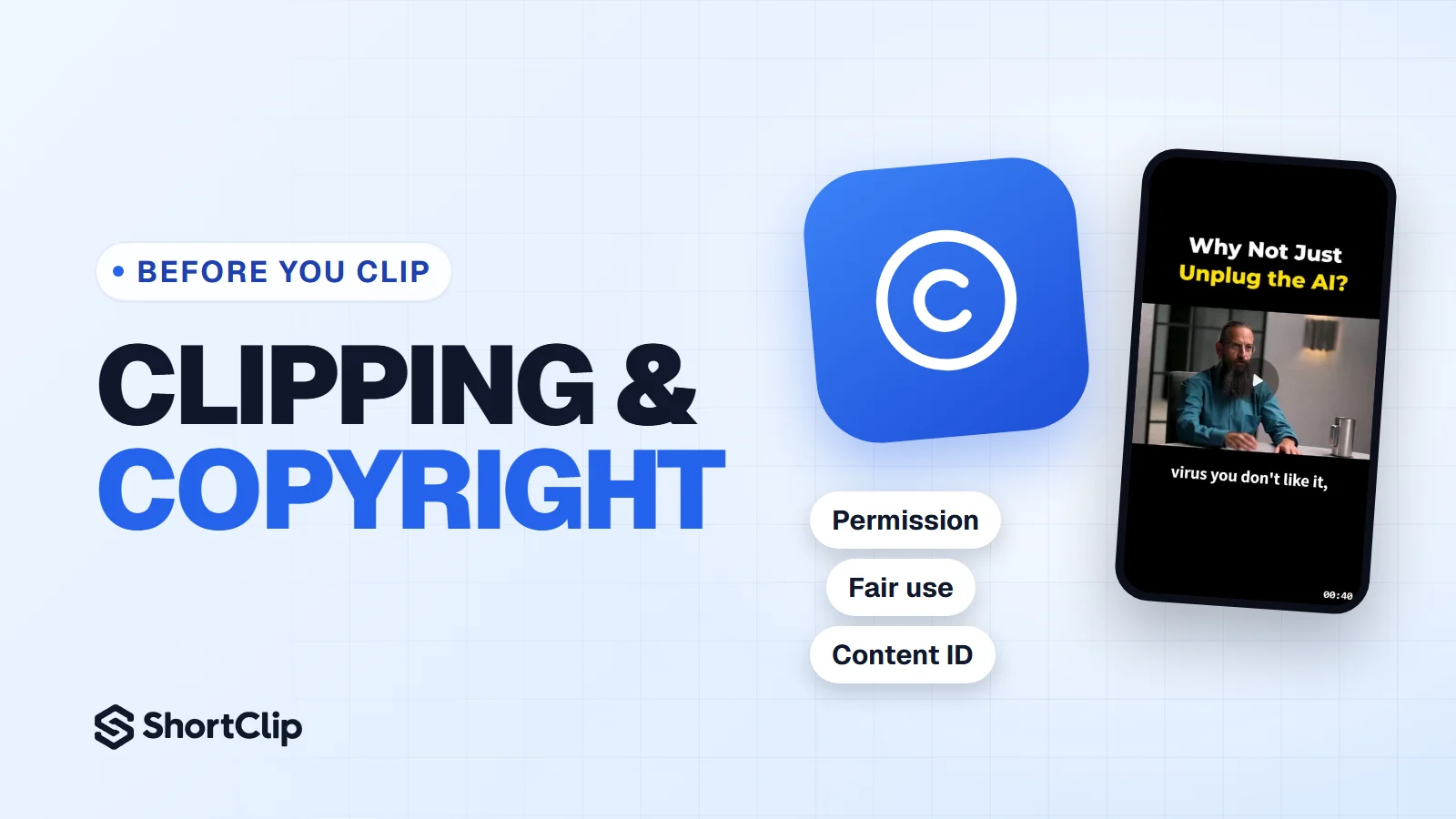
Clipping YouTube videos and copyright: what creators should know
Permission, fair use, Content ID, and strikes: what to check before you clip a YouTube video into shorts.