
How to edit AI captions: text, timing, and design
Try ShortClip for free.
Upload a video and ShortClip finds the key scenes, makes them vertical, and adds captions and a title.
Make short videos for free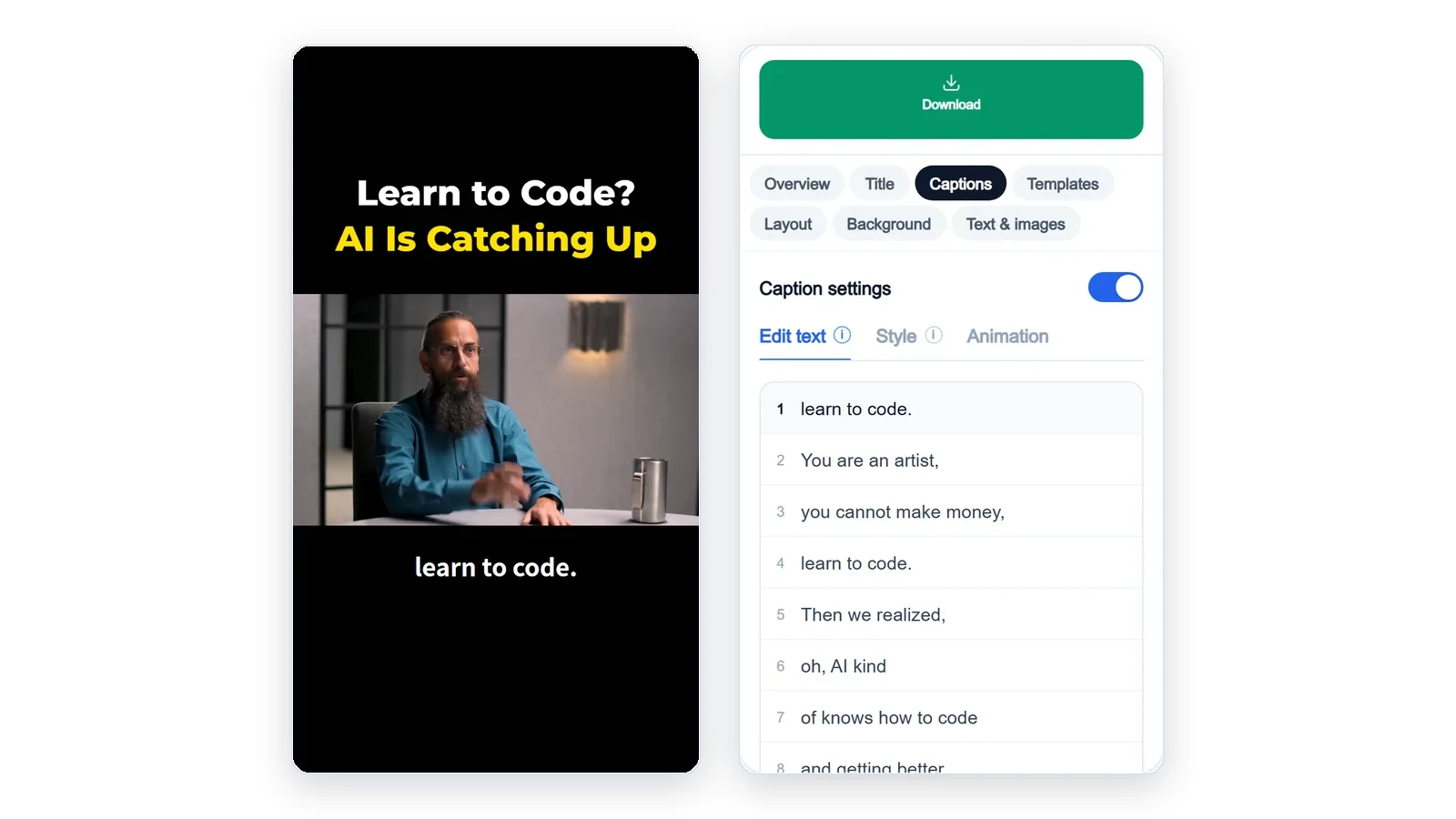
Fix typos in AI captions, match their timing, and set the font and colors. Every caption edit in one guide.
What you will learn
- Fix the text in the caption list on the Captions tab, or double-click a caption in the preview
- Adjust timing by dragging the edges of the caption blocks on the timeline
- Change font, size, color, and position in the caption style settings; they apply to every caption in that short
This guide shows how to fix the captions ShortClip generates, in three areas: text, timing, and design. AI captions sometimes get names and technical terms wrong, so it is worth reading them through once before you download.
Open the caption editor
In the editor, open the Captions tab in the settings panel on the right. The switch at the top shows or hides the captions, and below it there are two tabs: one for editing the text and one for the style.
Fix the caption text
Edit in the list
In the text tab, the captions are listed one block at a time with numbers. Click the caption you want to fix and retype the text. Captions are edited one block at a time.
Edit in the preview
Double-click a caption in the preview to edit its text in place. A single click opens the Captions tab.
Add or delete captions
Hover over a row in the list to show + (add text) and - (delete text). + adds a new caption after that one.
Adjust caption timing
On the timeline, captions are the purple blocks in the upper row. The width of a block is how long the caption is shown.
Lengthen or shorten a caption
Drag the left edge of a caption block to change when it starts, or the right edge to change when it ends.
Place a new caption
Drag across an empty spot in the caption row to create a new box and add a caption at that time.
Fine-tune
Zoom in with the magnifier buttons or the slider at the top right of the timeline to make short captions easier to adjust. The one-frame back and forward buttons move the playhead in small steps.
In the editor on a phone, you can also tap a caption block on the timeline to select it and drag its edges to change the timing.
Change how captions look
| Setting | What it does |
|---|---|
| Font | Chooses the typeface for captions |
| Size | Text size based on a 9:16 (1080x1920 px) frame. It also shows roughly how many characters fit on a line |
| Color | Text color. You can also pick colors that are not in the palette |
| Background color | The color of the band behind the text. You can also choose none |
| Letter spacing | The space between characters |
| Caption box width | The width at which captions wrap |
| Maximum lines | How many lines a single caption can use |
To move captions, drag a caption in the preview. When a caption is selected, drag the blue dots to change its size.
Fix captions on a phone
In the editor on a phone, tap Captions at the bottom of the screen to open the panel from below. It has the same text and style tabs as on a computer. Close the panel with the x at the top right.
Tips for editing captions
- Names of people, companies, and products, and technical terms are the most likely to be misheard, so check those first
- A caption that is too long cannot be read in time on a phone. Check readability with the maximum lines and size settings
- Style changes apply to all captions in that short
- If the editor says there is no caption data, the video needs to be processed again to add captions
Frequently asked questions
Are my caption edits saved?
Can I remove the captions and keep only the title?
Can I undo a mistake?
Can I change the color or size of only some captions?
What to read next
Once the captions are done, tidy up the title and the start and end points with How to edit AI-cut clips.
See plans and pricing|Free plan: up to 60 minutes a month, no credit card required
Related guides
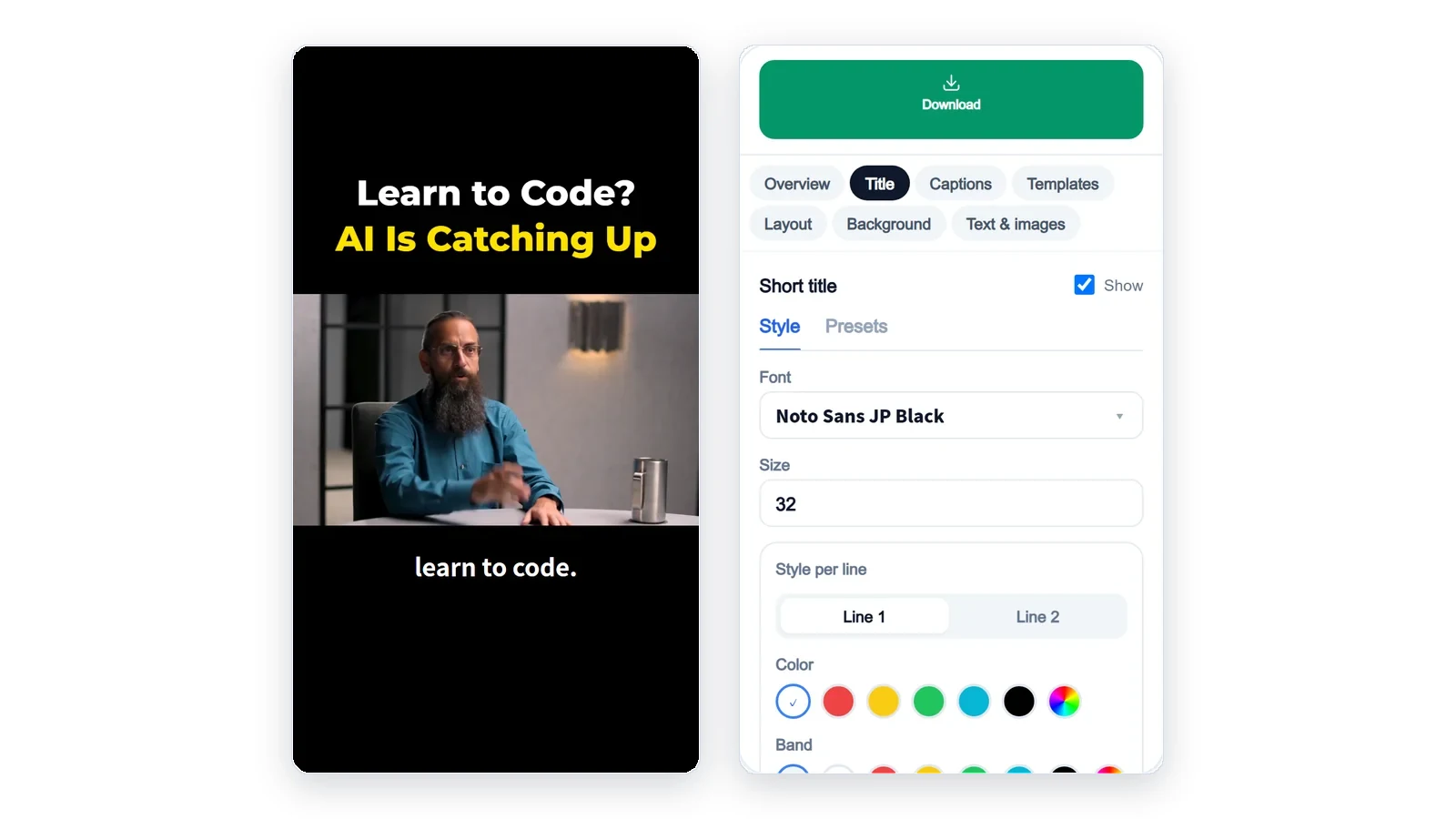
How to edit AI-cut clips: title, start, and end
Rewrite the title, adjust the start and end points, and cut what you do not need. How to finish an AI-cut clip.
How to add captions to short videos: phone, computer, and AI
Three ways to caption short videos, and the styling rules that keep captions readable on a phone.
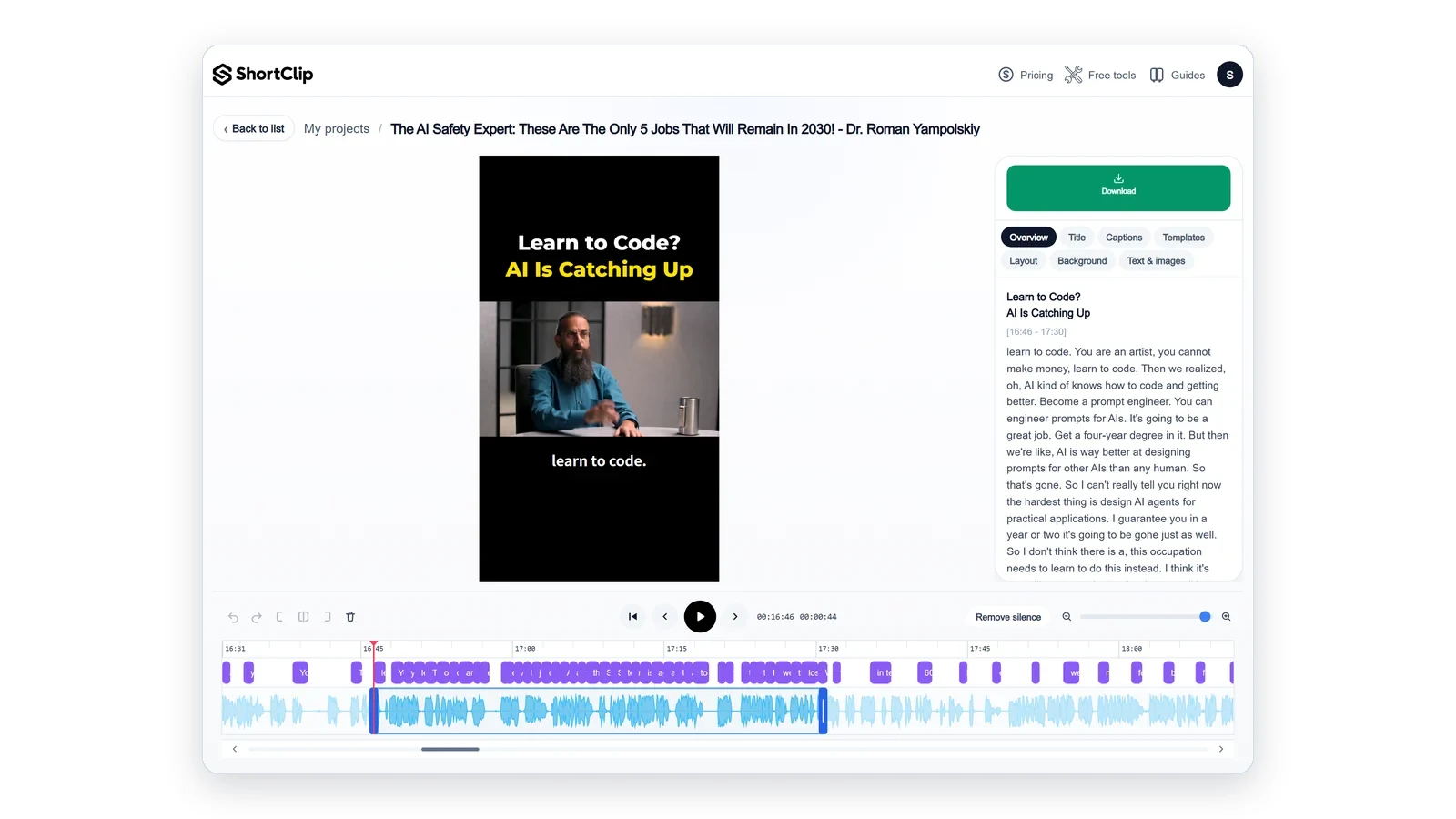
How to use ShortClip: the complete guide to making short videos with AI
From adding a video to editing and downloading the shorts the AI makes. The basics of ShortClip, in order.