
How to download your shorts and choose a plan
Try ShortClip for free.
Upload a video and ShortClip finds the key scenes, makes them vertical, and adds captions and a title.
Make short videos for free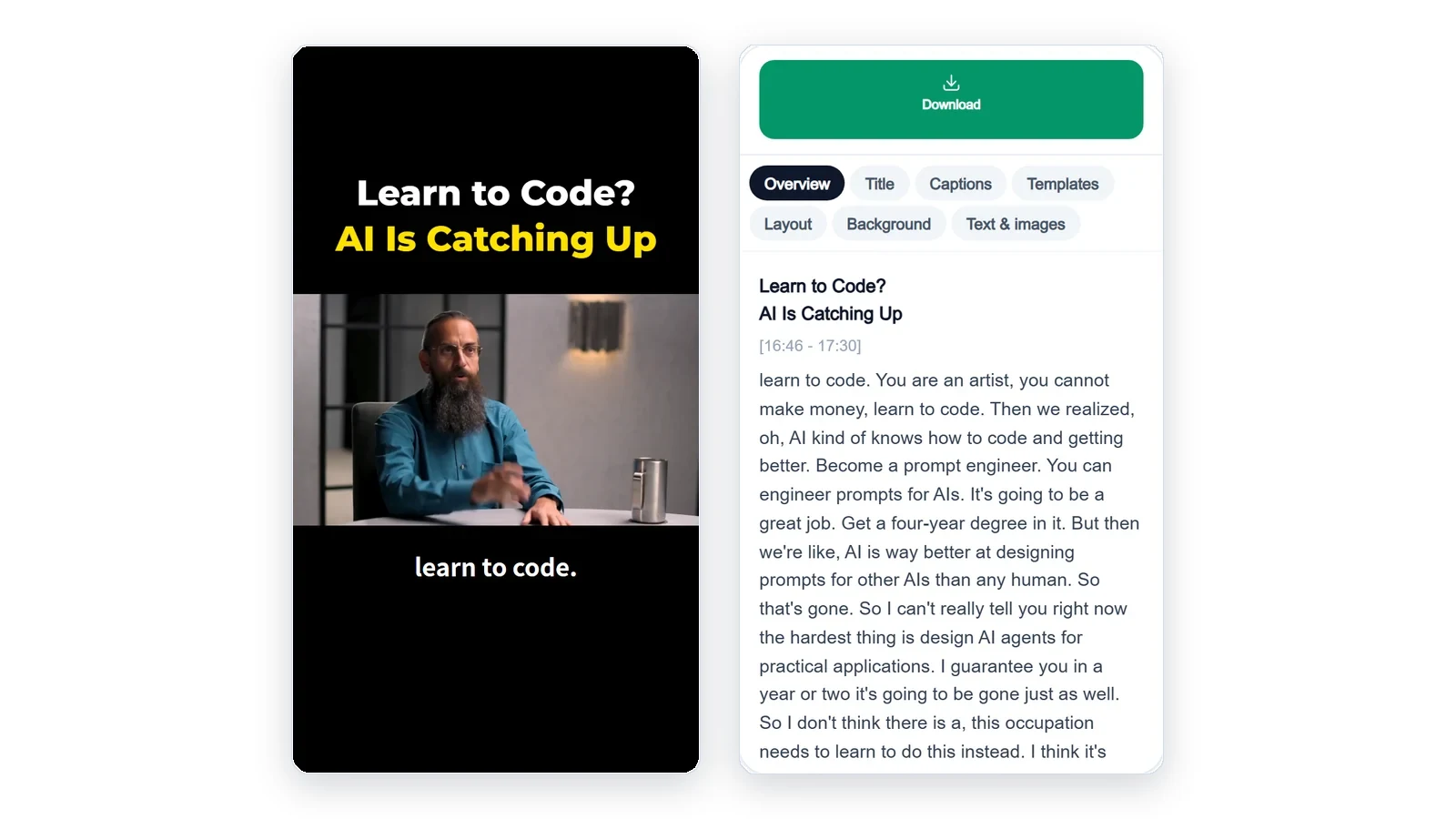
Save your shorts on a computer or a phone, and pick a plan by how many minutes you convert each month.
What you will learn
- On a computer, use "Download" at the top of the right panel or in the list of shorts. On a phone, use "Download" in the preview or "Export" in the editor.
- Each download is an MP4 file with your title, captions, and layout built in.
- Pick a plan by how many minutes of video you convert each month. The Free plan (60 minutes a month) is the easiest way to start.
This guide shows how to download the shorts you finished and how to choose a ShortClip plan. The plan table below is built from the same data as the pricing page, so it always matches what you can buy.
Download on a computer
Click "Download"
For the short you are editing, click the green "Download" button at the top of the settings panel on the right. Any other short can be saved with its own download button in the "Generated shorts" list.
Wait for the export
The button changes to "Preparing…" and then shows progress as a percentage. Click "Stop" if you want to cancel.
Find the file
When the export finishes, an MP4 file (for example shortclip-…-clip-1.mp4) is saved to your browser's download folder.
Download on a phone
- In the list of generated shorts, tap the download button next to "Edit" on the short you want.
- In the preview that opens when you tap a thumbnail, tap "Download" at the bottom.
- In the editor, tap "Export" at the top right.
What the downloaded file contains
| Item | Details |
|---|---|
| Format | MP4 |
| Frame | Vertical 9:16 |
| Included | Title, captions, layout, background, any text or images you added, and the trimmed range |
| Unit | One file per short |
Plans compared
Plans differ mainly in how many minutes you can convert each month, how long projects are kept, and which extra features you get. On the English site, prices are in US dollars and exclude tax; any tax that applies where you live is added at checkout before you pay.
| Plan | Price | Conversion time | Project storage | Main extras | Best for |
|---|---|---|---|---|---|
| Free | $0 | 60 minutes of video a month | Projects kept for 24 hours | AI clip generation, Automatic captions, AI two-line titles, Title & caption translation, Watermarked exports | About 30 shorts |
| Pro | $12/month + tax | 150 minutes of video a month | Projects kept for 7 days | AI clip generation, Automatic captions, AI two-line titles, Title & caption translation, Watermark-free downloads | About 75 shorts |
| Creator (recommended) | $23/month + tax, or $138/year + tax ($11.50 a month) | 300 minutes of video a month | Projects kept for 30 days | Everything in Pro, Custom font uploads, Silence removal, Bulk download (ZIP), Direct posting to YouTube Shorts | About 150 shorts |
| Enterprise | Contact us | High-volume video conversion | Projects kept for 90 days | Everything in Creator, Dedicated support, Custom feature development | For companies and production teams |
Included in every plan: AI cuts from long videos such as interviews, seminars, and podcasts, Two-line titles, Automatic captions.
How to choose a plan
1. Start with Free
The Free plan includes 60 minutes a month and needs no credit card. That is enough to take one video all the way from conversion to editing and download (Free plan downloads carry a watermark).
2. Match your monthly minutes
Each conversion uses the length (in minutes) of the range you select. Choose the plan whose monthly conversion time covers the total length of the videos you want to turn into shorts each month.
3. Check storage and features
If you edit over several days, check how long each plan keeps projects. Watermark-free downloads start on Pro; custom fonts and silence removal start on Creator, and title & caption translation is available on every plan.
Things to keep in mind
- Projects are kept for a limited time, and each project card shows how many hours or days are left. Download your shorts before then.
- If you do not have enough minutes left for a conversion, you will see "Not enough credits. Top up to continue."
- Before you post a short, make sure you have the rights to the original video and follow each platform's rules.
FAQ
Can I download on the Free plan?
Can I download all shorts at once?
Can I cancel a paid plan at any time?
Do unused minutes carry over to the next month?
Wrapping up the guide
That completes the whole flow, from converting a video to editing and downloading your shorts. To review the steps again, go back to How to use ShortClip.
See plans and pricing|Free plan: up to 60 minutes a month, no credit card required
Related guides
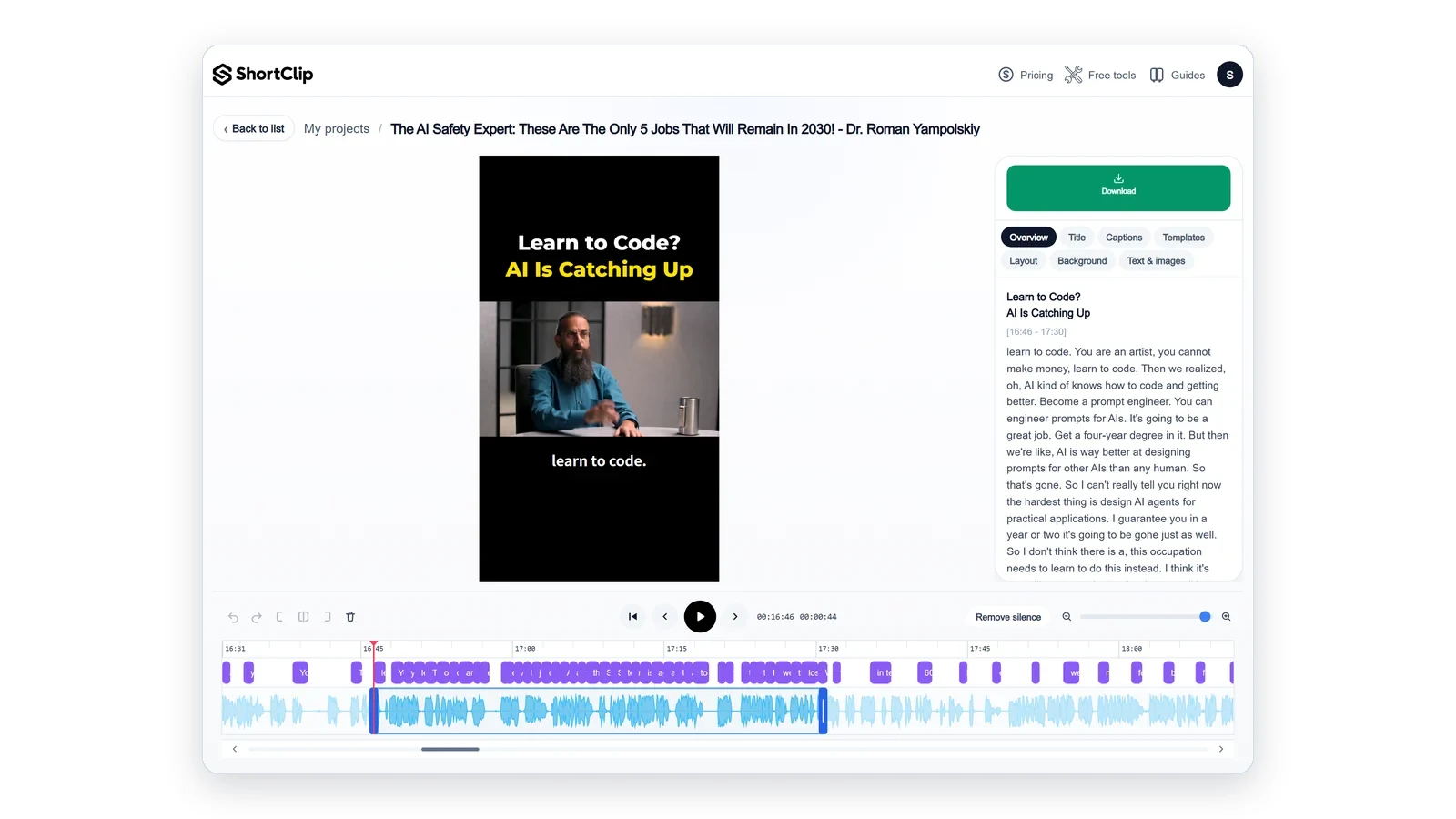
How to use ShortClip: the complete guide to making short videos with AI
From adding a video to editing and downloading the shorts the AI makes. The basics of ShortClip, in order.
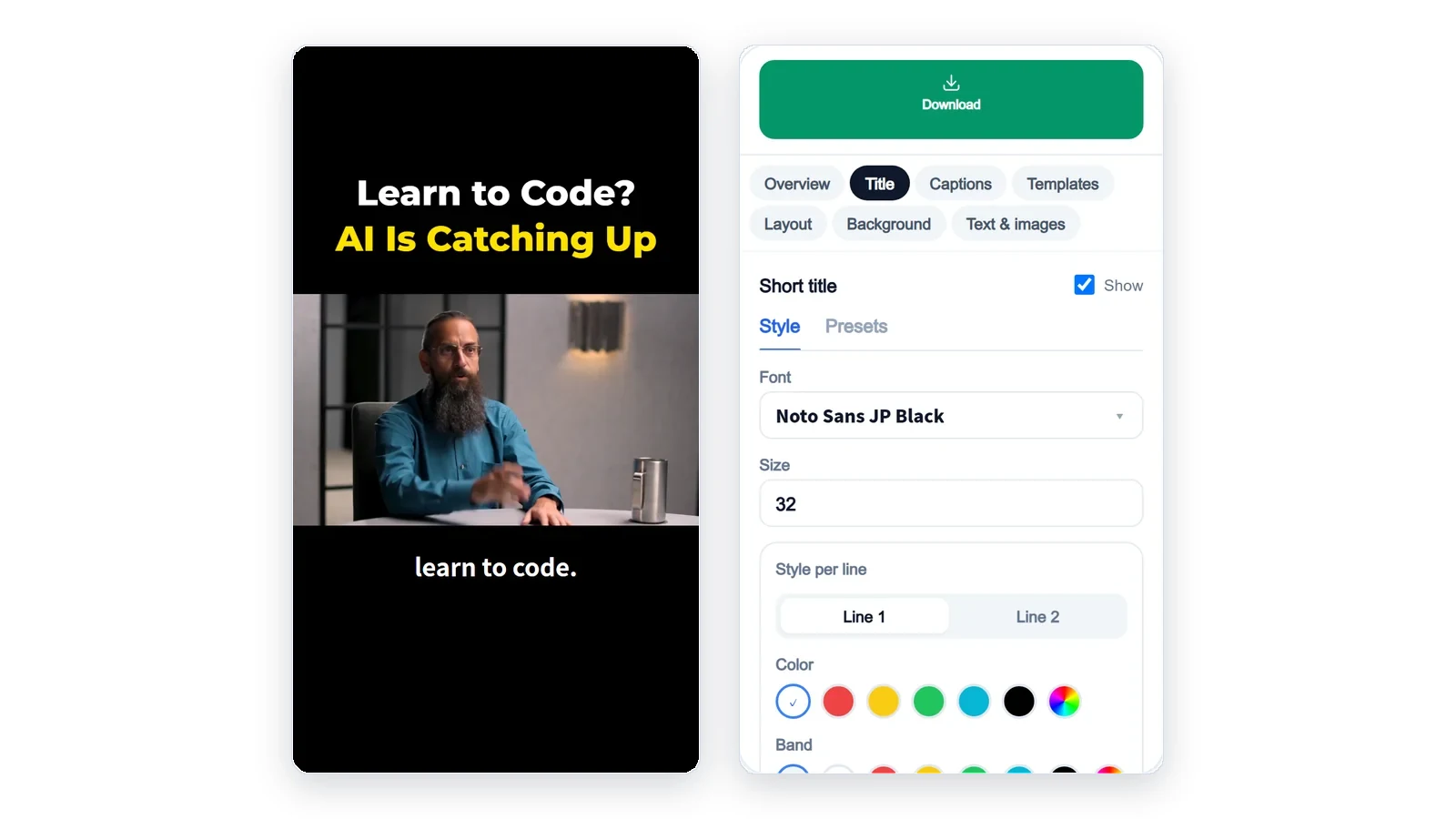
How to edit AI-cut clips: title, start, and end
Rewrite the title, adjust the start and end points, and cut what you do not need. How to finish an AI-cut clip.
Short-form video marketing: benefits, platforms, and how to start
What short-form video marketing can do for your business, which platform fits which goal, and how to start, including turning long videos into short ones.