
How to edit AI-cut clips: title, start, and end
Try ShortClip for free.
Upload a video and ShortClip finds the key scenes, makes them vertical, and adds captions and a title.
Make short videos for free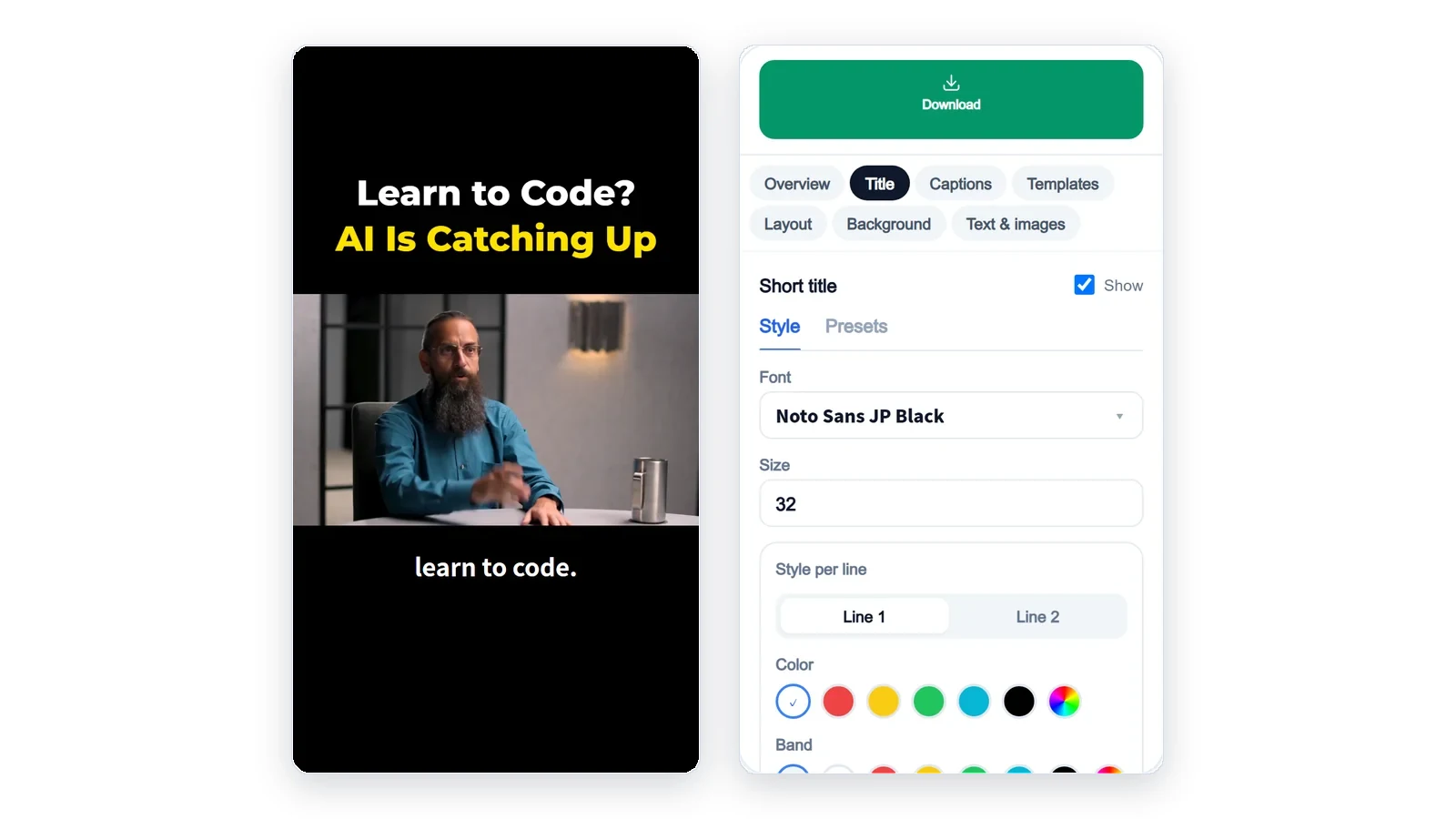
Rewrite the title, adjust the start and end points, and cut what you do not need. How to finish an AI-cut clip.
What you will learn
- Double-click the title in the preview to change its wording, and change its look on the Title tab
- Adjust the start and end points by dragging both ends of the clip on the timeline
- Remove parts you do not need with cut left, split, cut right, and delete
This guide shows how to fix the title of a short the AI cut, and where it starts and ends. The first few seconds and the title have a big effect on views, so check them before you download.
Edit the title
Change the wording
On a computer, double-click the title at the top of the preview to edit the text. On a phone, edit it in the title text field of the Title panel.
Change the look
On the Title tab you can change the font, size, color, background color, outline (thickness), line spacing, and letter spacing.
Hide the title
Clear the show check box next to the short's title setting and the title is no longer shown.
Adjust the start and end points
The blue box in the lower row of the timeline is the part of the video used for the short. The handles at each end set where it starts and ends.
Select the clip
Click the blue box in the lower row of the timeline to select it.
Drag either end
Move the start handle on the left to change where the short starts, and the end handle on the right to change where it ends. You can extend or shorten the clip within the range you chose when converting.
Play it back
Check the result with the play button in the middle. The go-to-start button takes you back to the beginning, and the length of the short is shown next to the time.
| Button | What it does |
|---|---|
| Undo / Redo | Undoes or redoes your last change |
| Cut left | Removes the part to the left of (before) the playhead from the clip |
| Split | Splits the clip in two at the playhead |
| Cut right | Removes the part to the right of (after) the playhead from the clip |
| Delete | Deletes the selected part |
To remove an "um" or a tangent in the middle, split the clip just before and just after the part you want to remove, then delete the part in between. You can also drag across an empty spot to add a new part.
Change how the video sits in the frame
On the Layout tab you can choose the shape of the box the video is shown in (16:9, 4:3, 1:1, 4:5, 3:4, or 9:16) and zoom the video in or out inside the 9:16 frame. Clicking the video in the preview also opens this tab. Change the background color on the Background tab.
Edit clips on a phone
- Tap the video row on the timeline to select a clip. Cut left, split, cut right, and delete appear below it
- Drag the ends of the selected clip to adjust the start and end points
- Clear the selection with the button at the bottom left to return to the Overview, Title, Captions, Layout, and Background buttons
- Tap Title to open the panel and rewrite the title in the title text field
Things to keep in mind when editing
- You can only extend a clip within the range you selected under "Range" when converting
- Changing the clip also changes which captions are shown for that time. Check the caption timing too
- You can delete shorts you do not need with the Delete (trash can) button in the "Generated shorts" list. Deleting cannot be undone, so be careful
Frequently asked questions
I want the short to start earlier than the AI chose.
Can I cut something out of the middle of a short?
I want the title on two lines.
Do I need to click a save button after editing?
What to read next
To fix captions, see How to edit AI captions. For the whole workflow, from adding a video to downloading, see How to use ShortClip: the complete guide.
See plans and pricing|Free plan: up to 60 minutes a month, no credit card required
Related guides
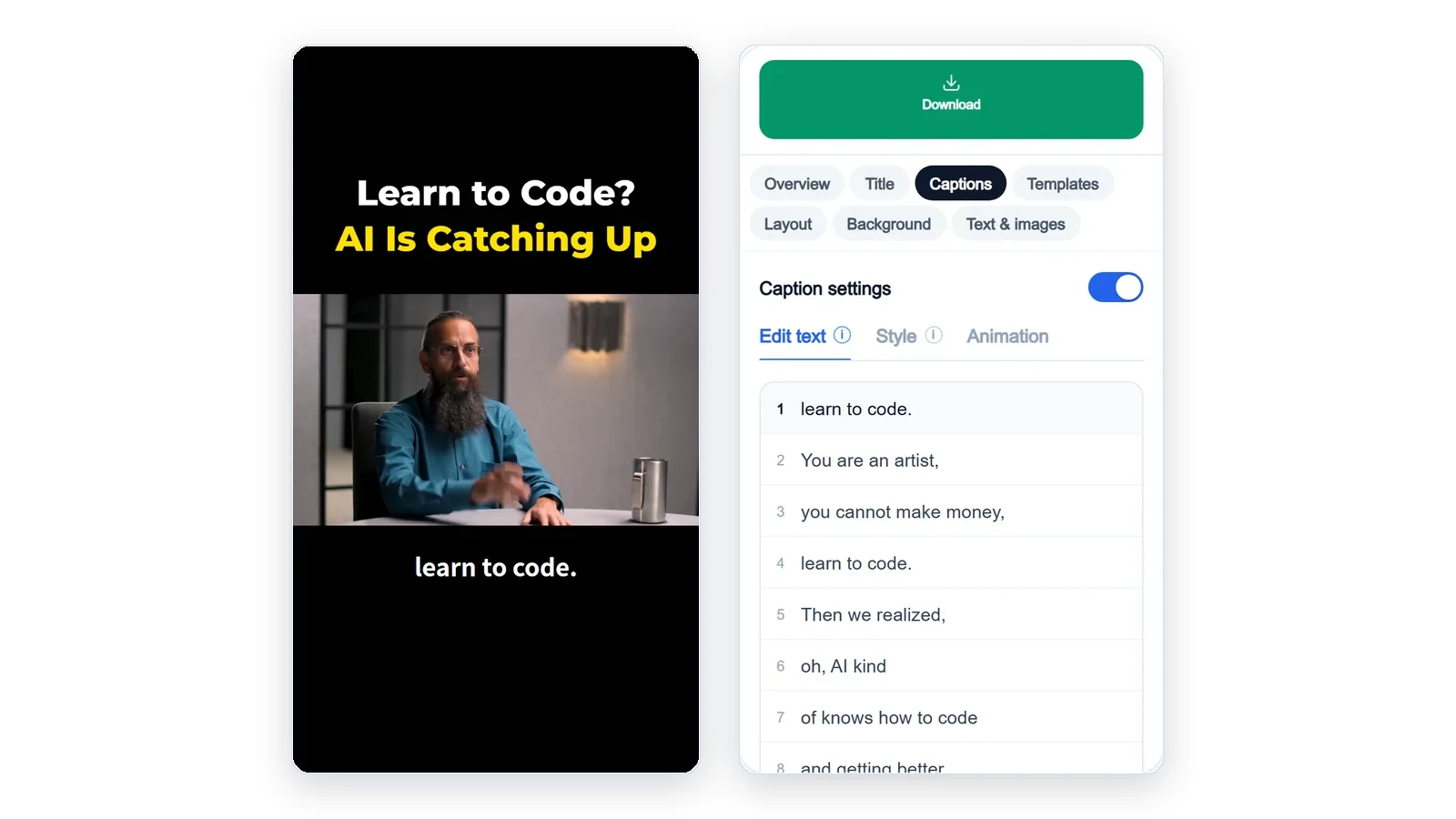
How to edit AI captions: text, timing, and design
Fix typos in AI captions, match their timing, and set the font and colors. Every caption edit in one guide.
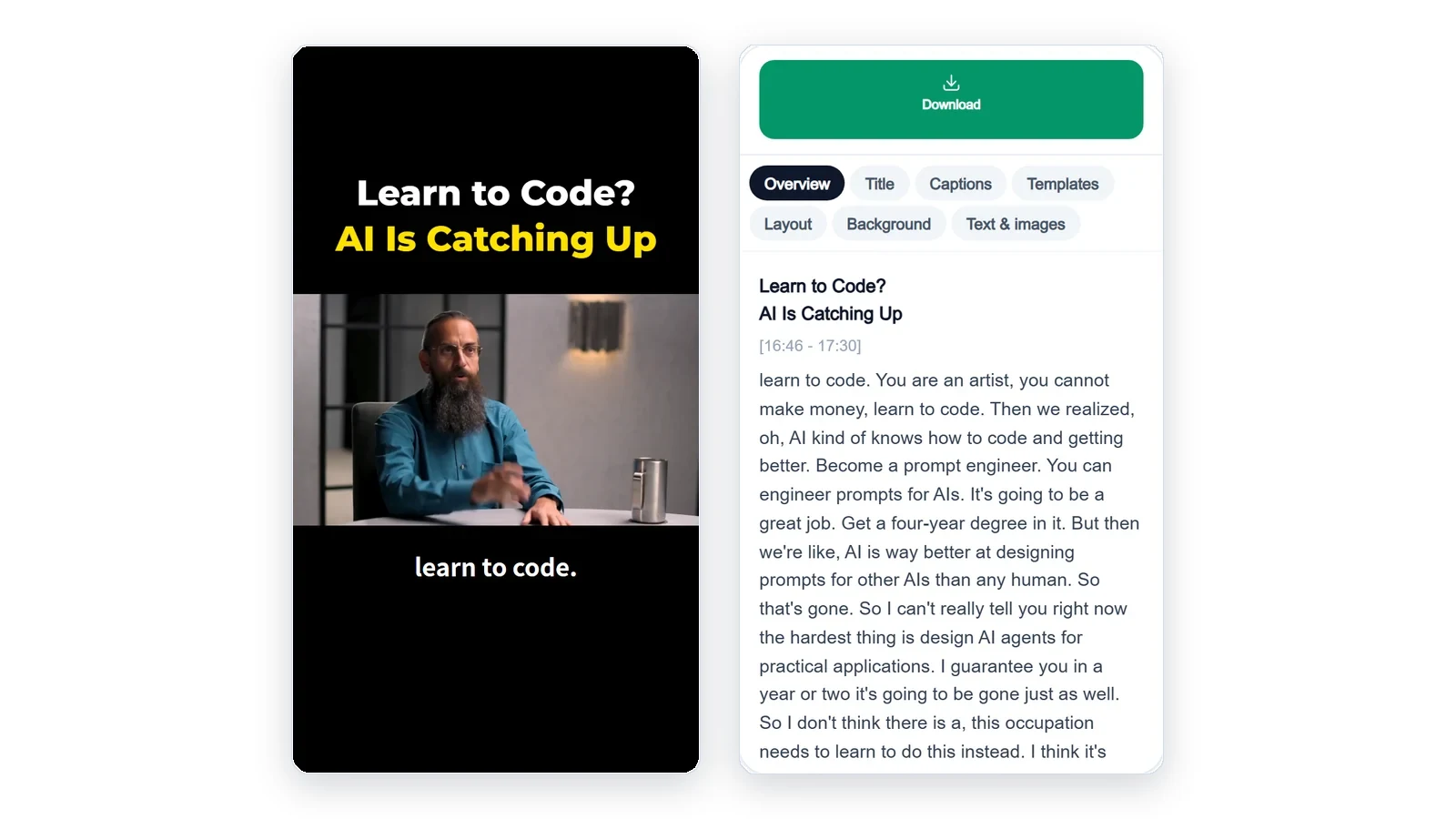
How to download your shorts and choose a plan
Save your shorts on a computer or a phone, and pick a plan by how many minutes you convert each month.
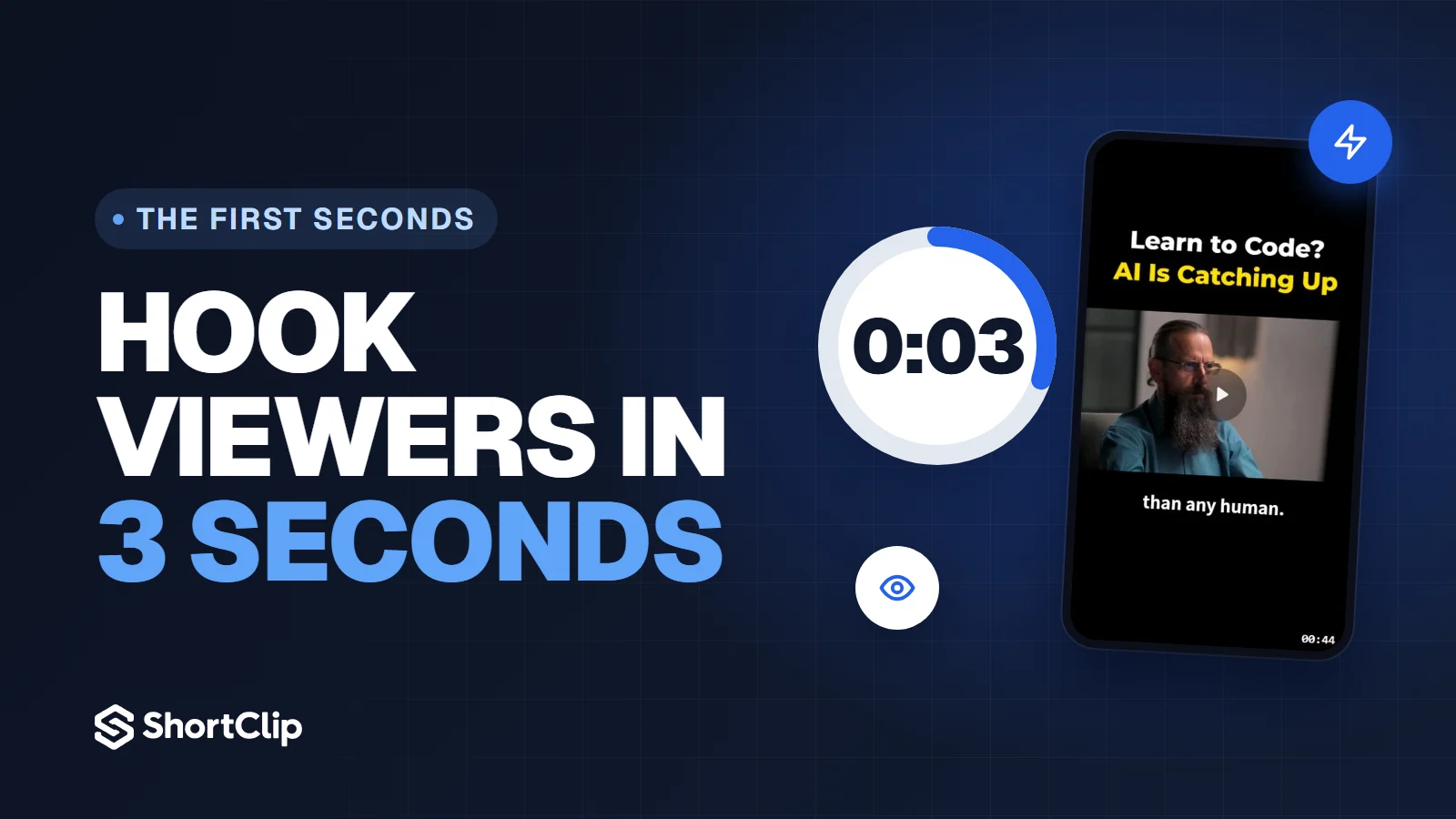
How to write a hook for the first 3 seconds of a short video
Viewers decide in the first seconds. Opening patterns that work, how to pair on-screen text with what you say, and the openings that make people swipe.