
Best AI subtitle generators: 3 types of tools and how to choose
Try ShortClip for free.
Upload a video and ShortClip finds the key scenes, makes them vertical, and adds captions and a title.
Make short videos for free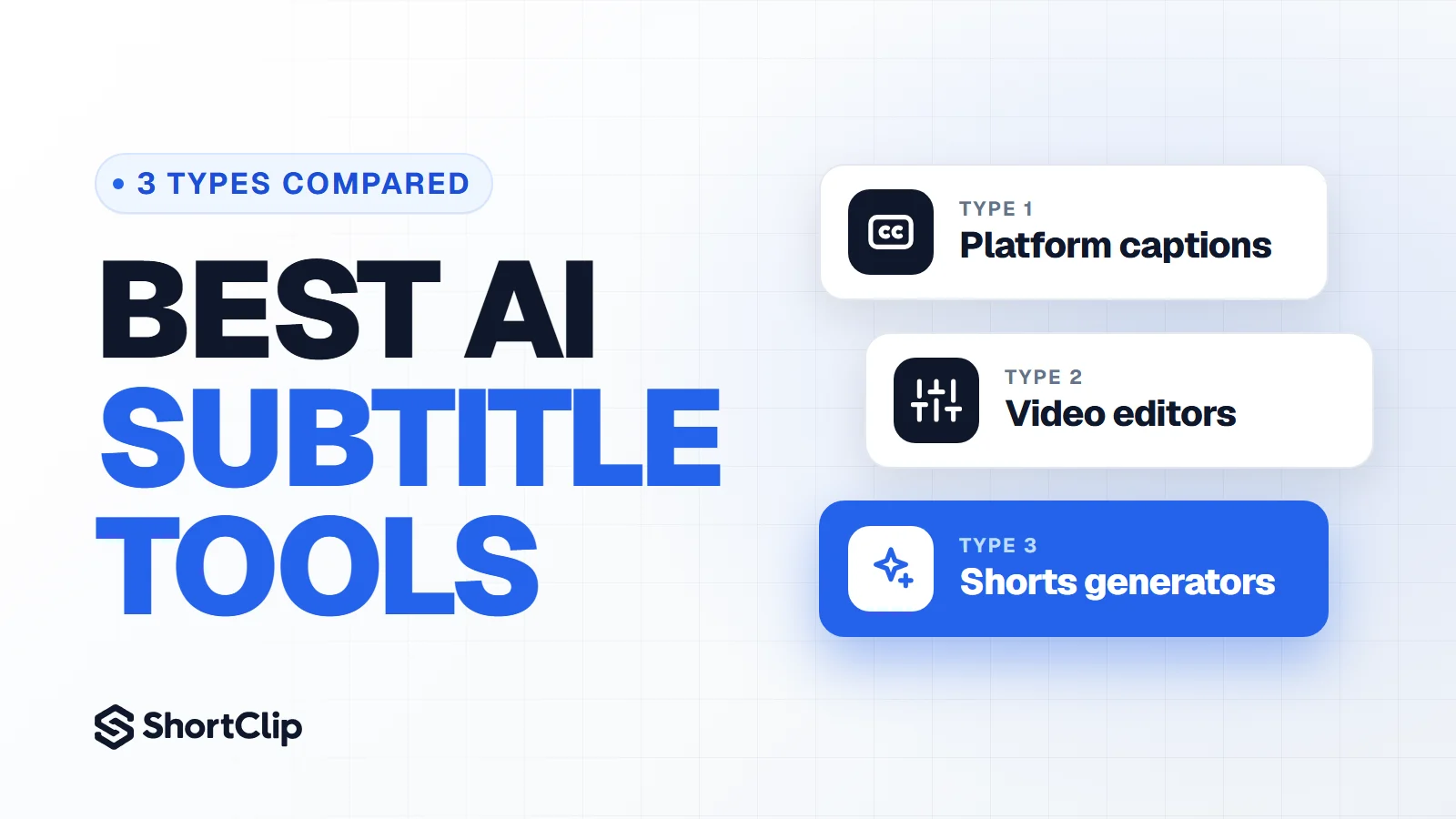
AI subtitle tools come in three types. Here is what each does well and how to pick one for your videos.
There are four common ways to add captions to a video today: let the platform caption it, use an editor's auto captions, use an AI tool that cuts and captions clips in one pass, or create a subtitle file (SRT/VTT) and upload it. They differ mainly in whether the captions are burned into the video, how much fixing they need, and what else the tool does.
| Method | Examples | Captions end up as | Your work | Best for |
|---|---|---|---|---|
| Platform auto-captions | YouTube automatic captions | A separate caption track on that platform | Review and fix in YouTube Studio | Videos that stay on YouTube |
| Editor auto captions | CapCut, Descript, Premiere Pro | Burned in, or exported as SRT | Cut the clip, generate, fix, style | Polishing one finished clip |
| AI short-video generators | ShortClip, OpusClip | Burned into each vertical clip | Pick clips, fix words and titles | Turning long videos into many captioned shorts |
| Subtitle file (SRT/VTT) | Transcription tools, manual typing | A sidecar file you upload | Time-code and upload per platform | Long videos, accessibility, translations |
The 3 types of AI subtitle tools
| Type | Examples | How captions are made | Best for |
|---|---|---|---|
| Platform auto-captions | YouTube automatic captions | Generated after you upload to the platform | Videos that already live on YouTube |
| Video editors with auto captions | CapCut, Descript, Premiere Pro | Generated inside the editor, then styled by hand | Polishing a clip you have already cut |
| Short-video generators | ShortClip, OpusClip | Captions are added while clips are cut from a long video | Turning long videos into many captioned shorts |
Popular tools at a glance
Summary as of November 2026, based on each vendor's public information. Plans and limits change, so confirm on the official sites.
For measured Japanese accuracy of the speech models behind these tools, see our Japanese transcription accuracy benchmark.
| Tool | Where it runs | Beyond captions | Free option |
|---|---|---|---|
| YouTube automatic captions | YouTube Studio | Edit and download captions for your own videos | Free |
| CapCut | Phone, desktop, browser | Full video editing, effects, templates | Free with paid upgrades |
| Descript | Desktop, browser | Edit video by editing the transcript, podcast tools | Free plan with limits |
| ShortClip | Browser | Finds highlights, makes vertical clips, writes titles | Free plan: 60 minutes per month |
YouTube automatic captions
YouTube generates captions for many uploads in supported languages. In YouTube Studio you can review them under Subtitles, fix mistakes, and publish the corrected track. They are free and good enough for search and accessibility, but they are not burned into the video and do not carry over when you repost a clip to TikTok or Instagram.
CapCut
CapCut's auto captions turn speech into styled, animated text on the timeline. It is popular for short-form because the caption styles look native to TikTok and Reels. You still choose, cut, and frame each clip yourself.
Descript
Descript transcribes the whole recording and lets you edit the video like a document. Captions come from the same transcript, so fixing a word fixes the caption too. It is strongest for podcasts and talking-head videos you edit end to end.
ShortClip
ShortClip starts from a long video. It transcribes the speech, picks the best moments, crops them to 9:16, and adds captions and a title to each short. You can then fix caption text, timing, font, size, and color in the editor (see how to edit AI captions). AI detects the spoken language and writes captions and titles in that language on every plan; translating them into another language is also available on every plan.
How to choose an AI subtitle tool
- Start from your input: if you have one finished clip, use an editor; if you have a long recording, a short-video generator saves the most time.
- Check how captions leave the tool: burned into the video (works everywhere) or as a separate SRT/VTT file (needed for YouTube captions and some players).
- Look at caption styling: font, size, color, position, and line length all affect readability on a phone.
- Compare free plan limits by minutes of video, not just number of exports, and check whether free exports carry a watermark.
- Test with your own audio: accents, music, and technical vocabulary change accuracy more than marketing claims do.
Common AI caption mistakes to check
- Names, brands, and acronyms spelled phonetically.
- Homophones (their/there, your/you're) and missing punctuation that changes the meaning.
- Numbers and units: "fifteen" vs "fifty", "%" vs "percent".
- Lines that are too long or break in the middle of a phrase.
- Captions that appear a little early or late after you trim a clip.
Frequently asked questions
Which AI subtitle tool is the most accurate?
Are there free AI subtitle generators?
Are YouTube's automatic captions enough for Shorts?
Can I add English subtitles to a video in another language?
How do I get subtitles from audio only?
What is the difference between captions and audio description?
See plans and pricing|Free plan: up to 60 minutes a month, no credit card required
Related guides
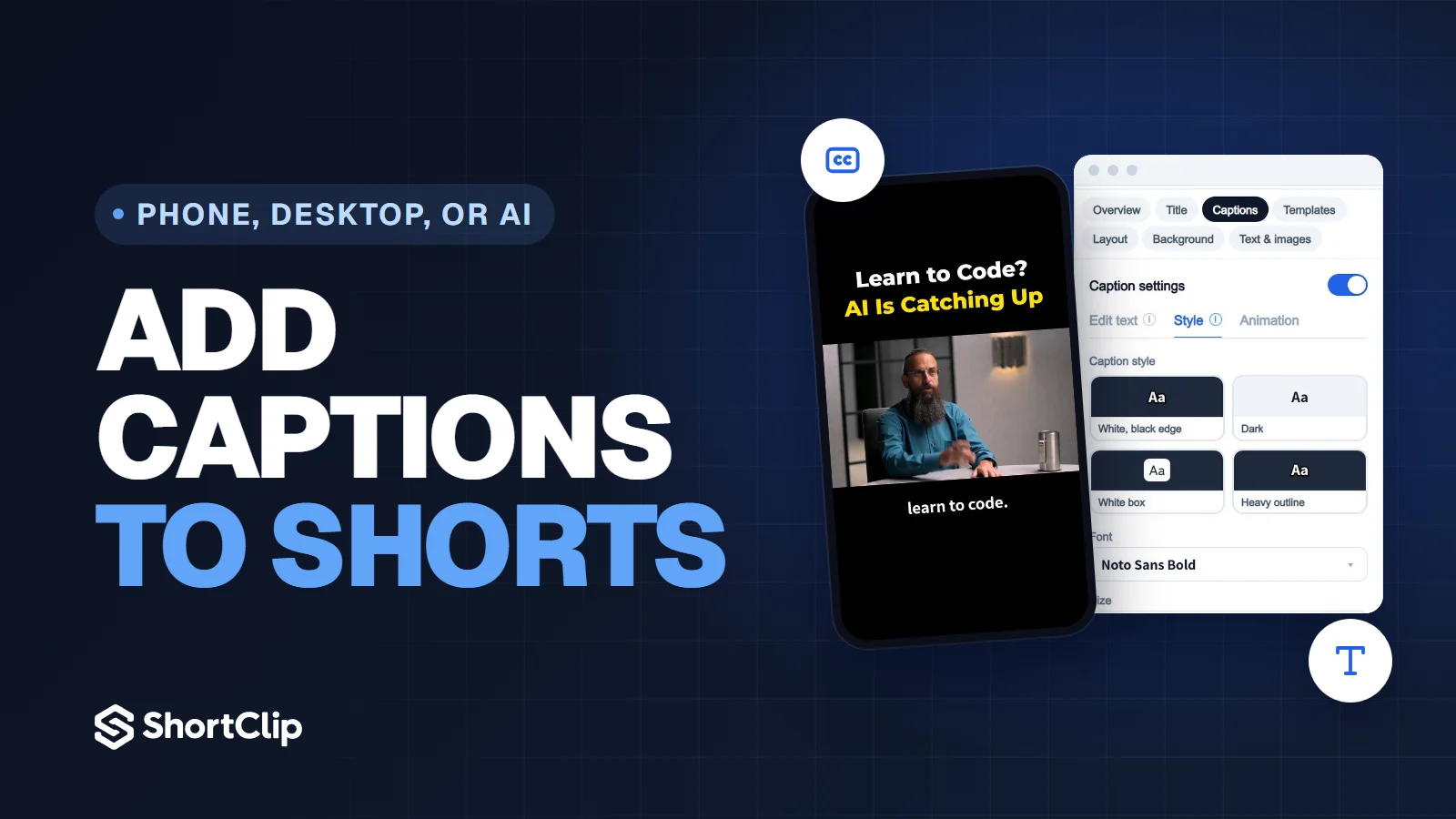
How to add captions to short videos: phone, computer, and AI
Three ways to caption short videos, and the styling rules that keep captions readable on a phone.
CapCut vs ShortClip: which one should you use for shorts?
A full editor or a focused AI shorts maker? How CapCut and ShortClip differ, and when to use each.
7 best AI short video makers in 2026, and how to use them
Clip makers, text-to-video, and AI editors compared, with a simple workflow for making shorts with AI.